
The MonkeyTactics Tip Calculator is built for the messy version of tipping, not the idealized one.
It handles the usual restaurant math, but it also gives you controls for tax-aware tipping, bill splitting, regional tipping customs, and rounding. That makes it more useful than a basic percentage box, especially when you want to settle a bill quickly without doing the arithmetic yourself.
Here is how to use it.
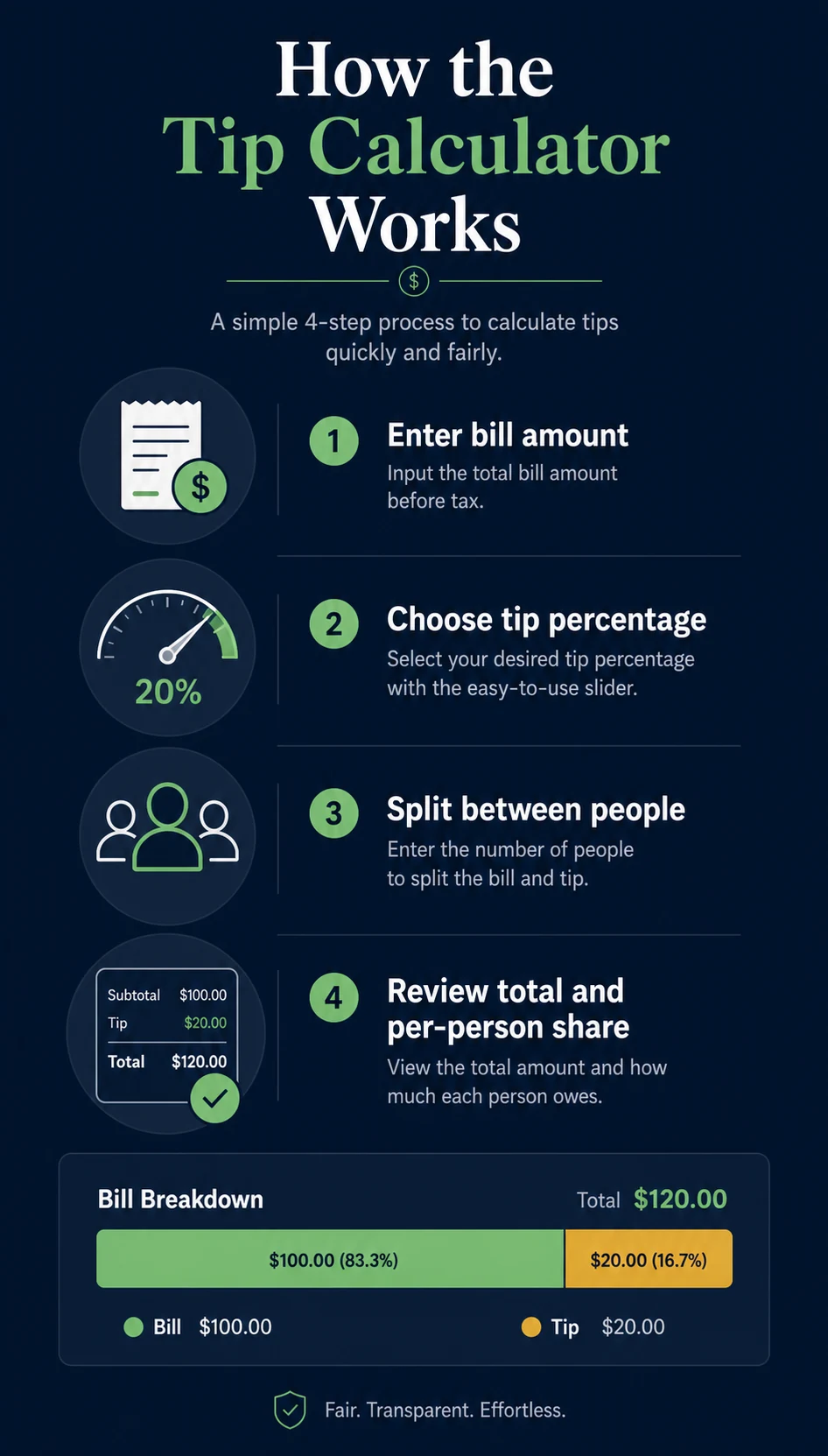
Start with the bill amount
The first field is the Bill Amount (including tax).
That label matters. The calculator expects the amount from the check, not just the pre-tax subtotal. If you already know the tax rate, the tool can work backward and show the pre-tax subtotal automatically.
You can enter the amount two ways:
- Type the value directly.
- Use the slider for a quick adjustment.
As soon as you change it, the results update live.
Choose how many people are splitting the bill
Use Split Between to set the number of people sharing the total.
The calculator supports one person or a larger group, and it updates the per-person share immediately. That makes it useful both for a solo check and for a table that wants to divide the bill evenly.
If the split does not divide perfectly into whole cents, the calculator still shows the exact per-person amount rounded to the cent. You can also use smart rounding later if you want cleaner totals.
Pick a tip percentage
Next, choose the Tip Percentage.
You can do that in three ways:
- Click a preset chip such as
10%,15%,18%,20%, or25%. - Drag the slider.
- Type your own number.
The preset chips are the fastest option when you are at a restaurant and want a common tip amount without thinking. The slider and input box are there when you want something more exact.
For many sit-down meals in the US, 15% to 20% is the usual range. The calculator also includes a brief hint under the field so the common baseline is visible without guessing.
Use tipping customs when traveling
One of the more useful features is the Country / Region Tipping Customs dropdown.
That selector is not just decorative. It gives you a quick reminder of the typical restaurant tipping practice for the place you select. For example:
- The United States and Canada usually expect a service tip.
- Japan and China generally do not.
- Some countries lean toward rounding up instead of leaving a fixed percentage.
This is helpful when you are traveling, ordering from an international menu, or writing about tipping practices for a specific region.
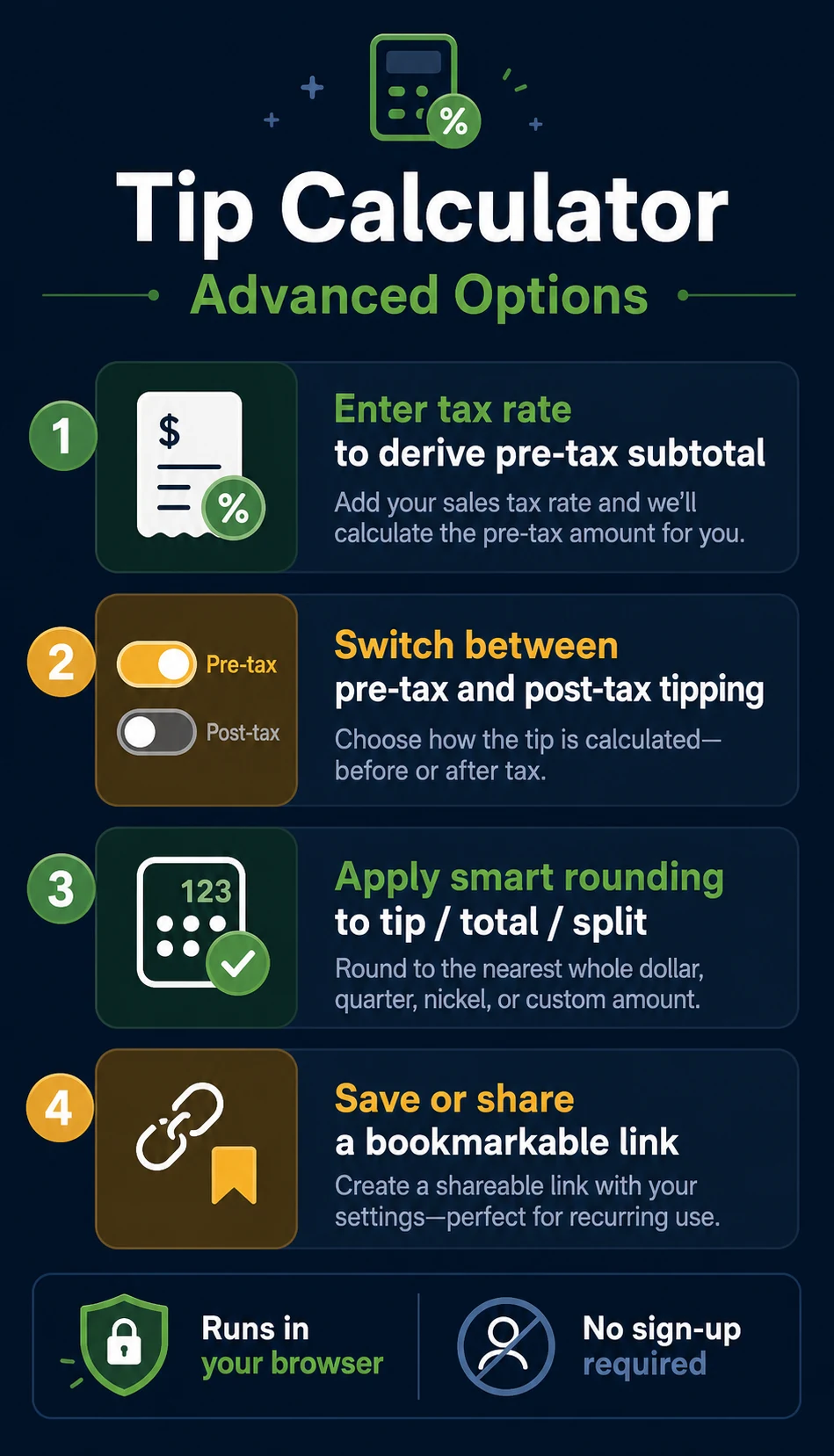
Open Advanced Options for tax-aware tipping
If you expand Advanced Options, you get the part that makes this calculator more capable than a simple tip widget.
Local sales tax rate
Enter your Local sales tax rate and the calculator derives the pre-tax subtotal from the full bill automatically.
That means you do not have to reverse the math by hand if the receipt total already includes tax.
Choose the tip basis
You can tell the calculator to compute the tip on either:
- Pre-tax
- Post-tax
The page defaults to pre-tax, which matches common tipping practice in the United States. But if you prefer to tip on the full bill, the toggle is there.
That flexibility is important because tipping habits are not universal, and the calculator does not force one answer on everyone.
Use Smart Adjustments when you want cleaner totals
The Smart Adjustments section is one of the most distinctive parts of the tool.
It lets you round:
- The tip amount
- The total bill
- The per-person split
Each one can be set to:
- Off
- Down
- Up
The tool applies those adjustments from top to bottom. That matters, because rounding the tip first and rounding the total first do not always produce the same final amount.
If you want to leave a tidy number at the table, this is the feature to use.
Read the live results
Once you enter values, the calculator shows three main outputs:
- Per person
- Total
- Tip
It also displays:
- The pre-tax subtotal
- The tip per person
- A breakdown bar that shows how much of the grand total is the bill versus the tip
- A short adjustment note when rounding changes the result
That breakdown is useful because it tells you not only what to pay, but also how the total was assembled.
Share or save the exact setup
Use Copy bookmarkable link if you want to save the current state or send it to someone else.
The generated link preserves the values you entered, including:
- Bill amount
- Tax rate
- Tip percentage
- Split count
- Pre-tax or post-tax tip basis
- Any smart rounding settings
That makes it easy to return to the same setup later without re-entering everything.
A quick example
Suppose your check is $85.50 and the local tax rate is 8%.
If you enter those values, the calculator derives the pre-tax subtotal and then computes the tip from whichever basis you select.
For a standard pre-tax tip:
- Pre-tax subtotal:
$79.17 - 18% tip:
$14.25 - Total:
$99.75
If you switch to post-tax tipping, the tip increases because it uses the full bill instead of the pre-tax amount.
That kind of comparison is useful when you want to understand the difference between common tipping approaches rather than just accepting a final number.
What makes this calculator different
The unique features are the ones that make the tool adaptable in real use:
- It is tax-aware instead of assuming the subtotal is already obvious.
- It supports pre-tax and post-tax tipping.
- It includes country and region tipping customs.
- It offers preset tip chips for fast use.
- It supports smart rounding for tip, total, and split amounts.
- It shows a live bill-versus-tip breakdown bar.
- It preserves the current settings in a shareable link.
- It runs entirely in the browser, with no sign-up required.
That combination turns it from a basic arithmetic tool into something you can actually use at a table, while traveling, or when you want to sanity-check a receipt.
The calculator link
Use the tool here:
If you want the shortest possible workflow, enter the bill, choose a tip percentage, split the total, and let the calculator do the rest. If you want more control, open Advanced Options and tune the tax and rounding behavior too.