
The MonkeyTactics Password Generator is more than a button that makes a random password. It can create passwords, passphrases, usernames and email aliases. It can also examine a password you already have and privately check whether it appears in known data breaches.
This guide explains every feature in everyday language. You do not need to understand encryption, entropy or computer programming to use it.
What the four tabs do
| Tab | Use it when you want to |
|---|---|
| Password | Create one or as many as 100 random passwords |
| Passphrase | Create a longer password made from several unrelated words |
| Username | Create a random username or a unique email alias |
| Check my Password | Examine the strength of an existing password and optionally check breach records |
Create a random password
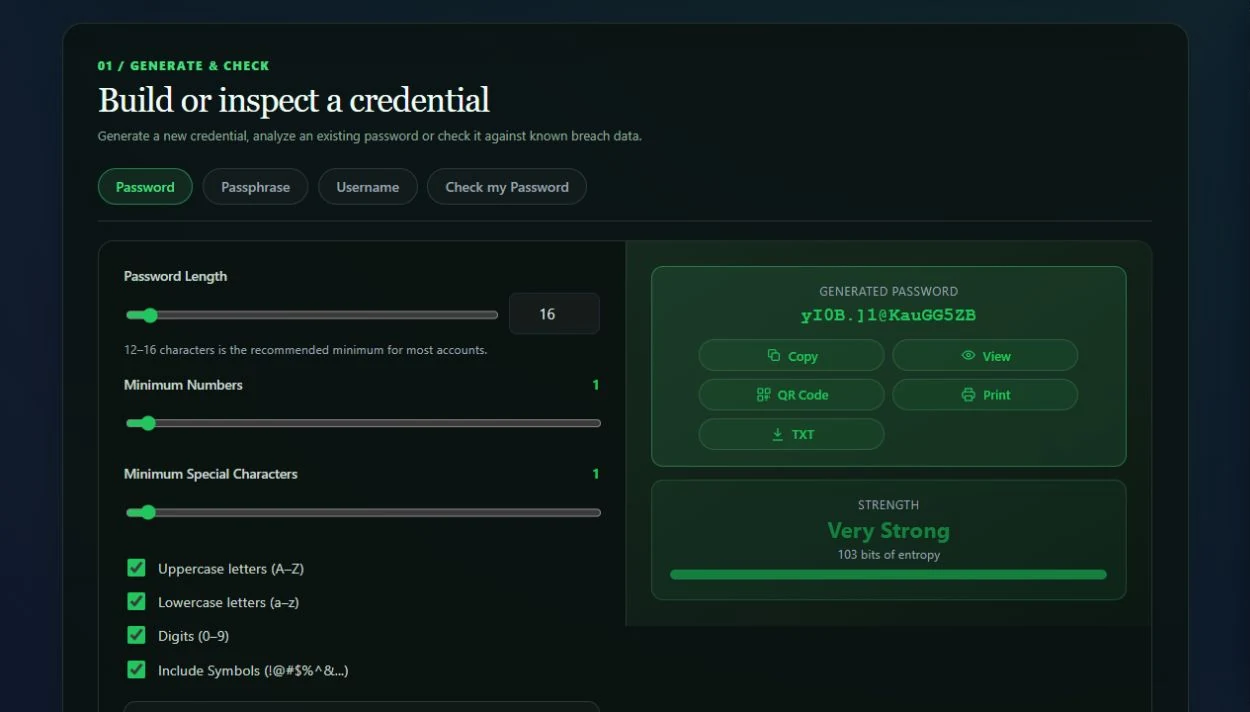
Open the Password tab. A password is generated when the page loads, but you can change any setting and select Generate Password to make a new one.
Choose the password length
Use the Password Length slider or type a number in the box. The tool supports passwords from 4 to 2,048 characters.
In plain terms, a longer password usually gives an attacker far more possibilities to guess. For most ordinary accounts, use at least the length required by the website. When a password manager will remember it for you, choosing a longer password is easy and sensible.
Meet a website’s number and symbol rules
Use Minimum Numbers to guarantee that the result contains the required number of digits. Use Minimum Special Characters to do the same for symbols such as !, @ or #.
These controls are useful for sites that say things like “must contain at least two numbers and one special character.” You do not have to keep clicking until a suitable password appears.
Choose the character types
The four checkboxes control which kinds of characters may appear:
- Uppercase letters adds
AthroughZ. - Lowercase letters adds
athroughz. - Digits adds
0through9. - Include Symbols adds punctuation and special characters.
Using more character types gives the generator a larger collection of possible characters. That generally makes a password harder to guess. If a website does not accept symbols, turn that option off and compensate with more length.
Use Advanced Options
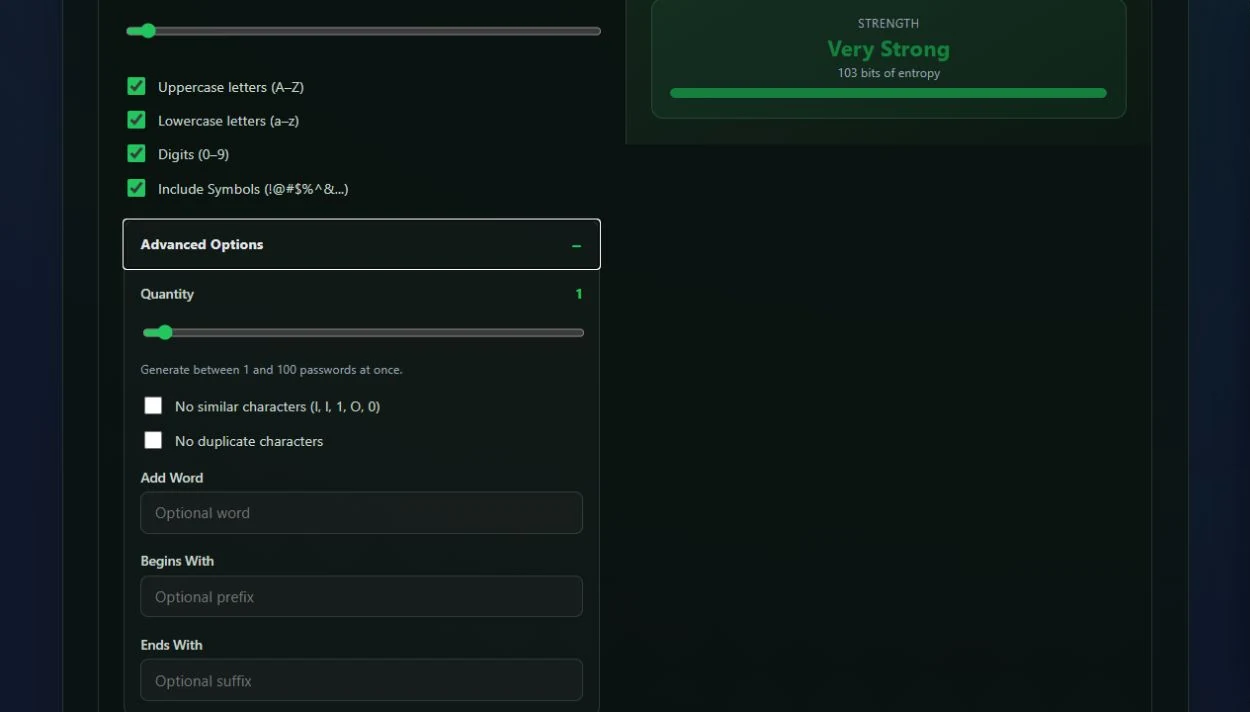
Open Advanced Options when a website has unusual password rules or when you need several passwords at once.
Generate a batch
Set Quantity anywhere from 1 to 100. With more than one result, the passwords appear in a table. You can select one, several or all rows before copying, printing or downloading them.
The table is paginated when necessary, which simply means a large batch is divided into manageable pages instead of becoming one very long screen.
Remove similar-looking characters
Turn on No similar characters to leave out characters such as I, l, 1, O and 0.
This is helpful when a password may be read from paper or typed by hand. It reduces mistakes caused by characters that look almost identical.
Prevent repeated characters
Turn on No duplicate characters if every character must be different. Some systems require this, although most do not.
This setting needs enough available characters for the length you selected. If you request a very long password while allowing only a small character set, the tool may not be able to satisfy the rule.
Add a word, beginning or ending
- Add Word places a word you choose inside the generated password.
- Begins With forces the password to start with your chosen text.
- Ends With forces it to finish with your chosen text.
These fields are useful for rigid company or device rules. However, personal names, birthdays and other predictable details can make a password easier to guess. Leave these fields blank unless you have a reason to use them.
Generate or reset
- Select Generate Password for a fresh result using the current settings.
- Select Reset to Defaults to return the Password tab to its original setup.
Understand and use the password result
The result area includes a Strength label and an estimated number of bits of entropy. Entropy is a way to describe how many possible results an attacker would have to consider. In everyday terms, a higher number means more possible guesses and usually a harder password to crack.
The estimate is useful for comparison, but it is not a promise that a password can never be stolen. A strong password can still be exposed by phishing, malware, reuse or an unsafe storage method.
Result actions
- Copy places the selected password or passwords on the clipboard.
- View opens a larger preview of one selected password and provides another Copy button.
- QR Code turns one selected result into a scannable code.
- Print opens printing options.
- TXT downloads the selected results as a plain-text file.
For a batch, View and QR Code need exactly one selected row because the preview has to know which password to show. Copy, Print and TXT can work with a larger selection.
Treat the clipboard, a TXT file and a printout as sensitive. Each contains the password in readable form.
Print a password list
The print window lets you:
- Put 1 to 30 passwords on each page.
- Add a QR code for every password.
- Choose QR quality at 72, 300, 600 or 1,200 DPI.
- Put each QR code on a separate page when it needs more space.
“DPI” means print resolution. A larger number produces a larger, more detailed image. For ordinary printing, 300 DPI is usually a practical choice.
Create a memorable passphrase
Open the Passphrase tab when you want several unrelated words instead of a jumble of characters.
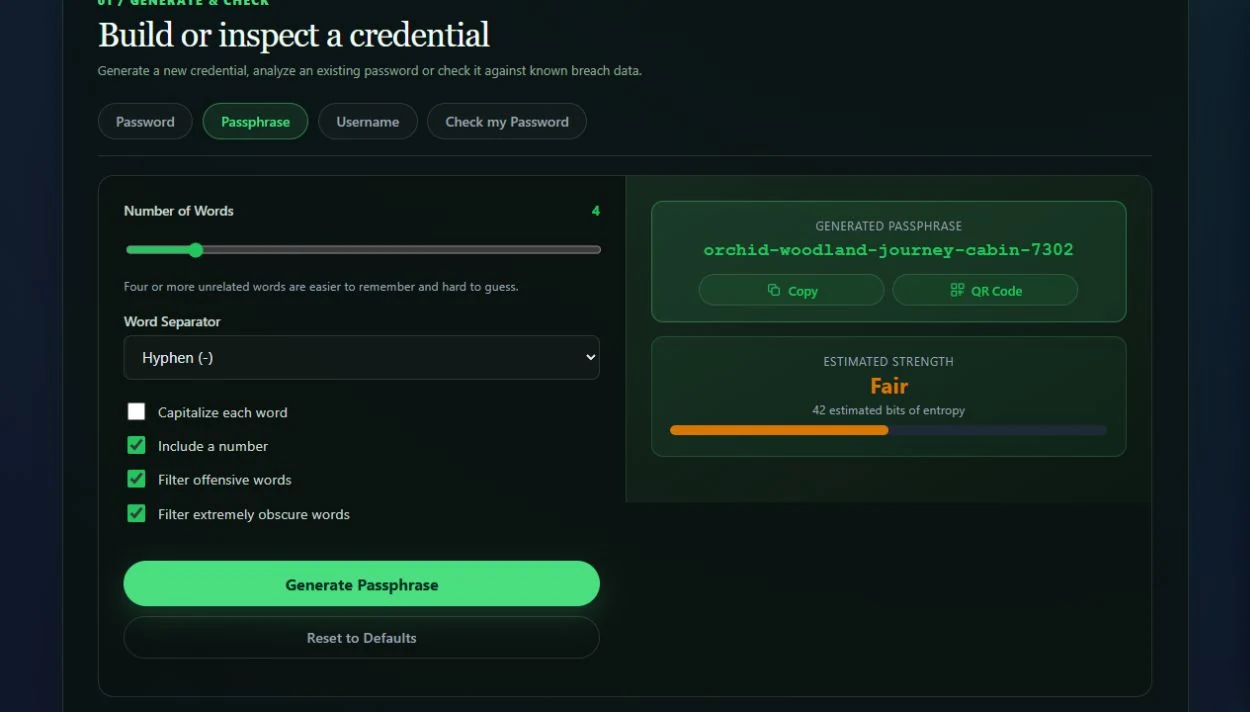
The passphrase features are:
- Number of Words: choose from 3 to 12 words. More words are generally stronger.
- Word Separator: place a hyphen, period, underscore or space between words, or use no separator.
- Capitalize each word: changes the first letter of every word to uppercase.
- Include a number: adds a random number.
- Filter offensive words: keeps inappropriate dictionary words out of the result.
- Filter extremely obscure words: avoids words that may be unnecessarily difficult to remember or spell.
- Generate Passphrase: creates a new result.
- Reset to Defaults: restores the starting options.
- Copy: copies the passphrase.
- QR Code: creates a QR version for transfer to another trusted device.
- Estimated Strength: shows a plain-language rating and estimated entropy.
The generator uses unrelated dictionary words rather than a familiar quotation or sentence. A well-known phrase can be guessed; several genuinely random words are much less predictable.
Create usernames and email aliases
Open the Username tab and choose one of three formats.
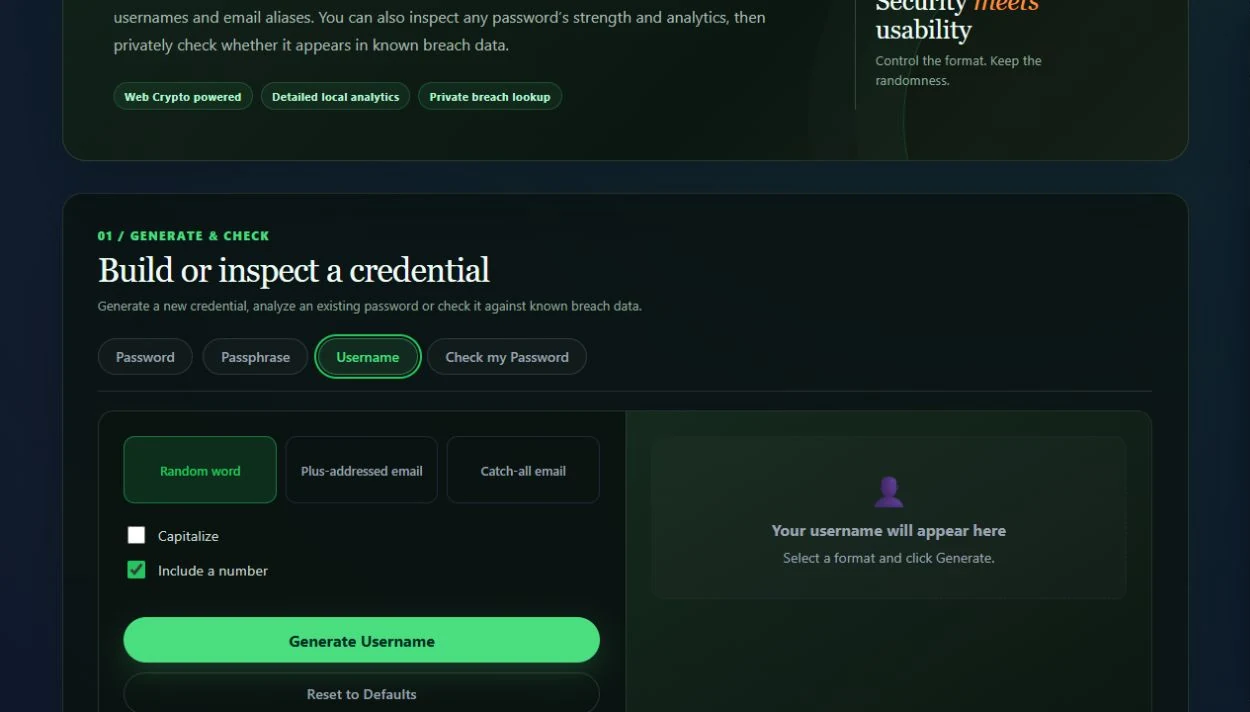
Random word
This creates a random word that can be used as a username. You can:
- Capitalize the word.
- Include a number to make more possible combinations and help when the plain word is already taken.
Plus-addressed email
Enter an existing email address and the tool adds a unique tag after the account name, producing an address in the style of name+tag@example.com.
Messages normally still arrive in the original inbox. This can help you sort registrations or recognize which service received a particular address. Your email provider must support plus addressing for this to work.
Catch-all email
Enter a domain that you control and the tool creates a unique address at that domain. For example, it may create a new address ending in @example.com.
This works only when the domain is already configured to accept mail sent to any address, usually called catch-all delivery. The generator creates the address text; it does not configure your mail server.
All three formats include Generate Username, Reset to Defaults, Copy and QR Code actions.
Check an existing password
Open Check my Password and type or paste a password. The analysis updates on your device as you type.
The password is hidden by default. Turn on Show password only when nobody nearby can see your screen.
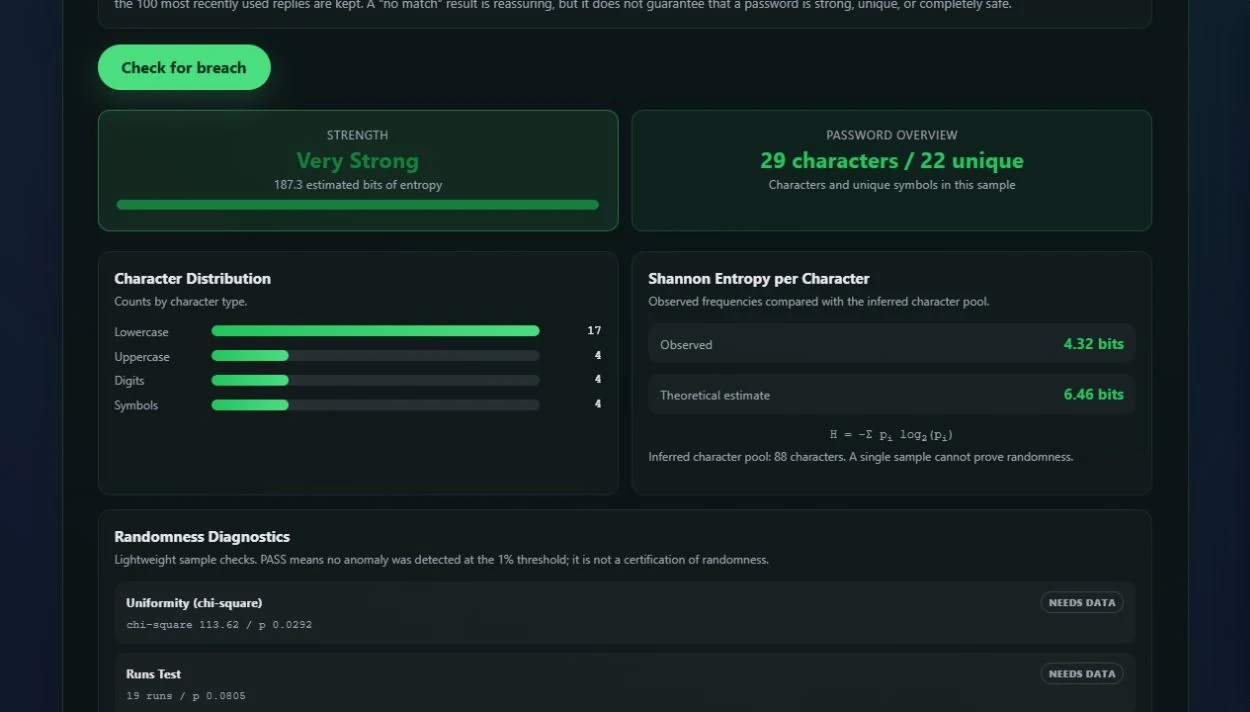
Strength and overview
The first cards show:
- A plain-language strength rating.
- Estimated entropy.
- Total character count.
- Number of unique characters.
This gives you a quick summary before you look at the more detailed measurements.
Character distribution
This counts lowercase letters, uppercase letters, digits, symbols and, when present, Unicode characters. The bars make it easy to see whether one type dominates the password.
Shannon entropy per character
The report compares the mix actually observed in the password with a theoretical estimate based on the character pool. In plain language, it looks at how repetitive or varied the sample appears.
A single password is too small a sample to prove that a generator is random, so this section is a clue rather than a certificate.
Randomness diagnostics
The tool runs lightweight statistical checks:
- Uniformity (chi-square) looks for characters appearing much more or less often than expected.
- Runs Test looks at the way character categories alternate.
- Monobit Test turns the sample into a simple two-group sequence and checks its balance.
- Index of Coincidence measures how often characters repeat.
You may see Pass, a warning or Needs Data. Short passwords often do not contain enough information for a meaningful statistical result. Even “Pass” only means that the small check did not find an obvious problem; it does not prove the password is safe.
Brute-force time estimates
This estimates how long it would take to try the full set of possible passwords at two imagined speeds:
- One trillion guesses per second.
- One quintillion guesses per second.
These are comparison figures, not a countdown. Real cracking speed depends on how a website stores passwords, rate limits, hardware and many other details.
Collision probability
This estimates the chance that two independently generated credentials would accidentally be the same when one billion credentials are created. It also shows the estimated size of the full set of possible results.
Character heatmap
The heatmap colors each position by character type. It provides a quick visual check of the mixture and shows up to the first 256 positions for very long passwords.
Check whether a password appears in breach data
After entering a password, select Check for breach. This is the one feature that contacts an outside breach service, but it is designed so that the complete password is not sent.
Here is the process in plain language:
- Your browser converts the password into a one-way digital fingerprint called a SHA-1 hash.
- It sends only the first five characters of that fingerprint to the Pwned Passwords service.
- The service returns a large group of possible matches.
- Your browser compares the rest of the fingerprint locally to find an exact match.
The complete password and complete fingerprint are not sent. The anonymous group reply may be cached on your device for 24 hours, and only the 100 most recently used replies are kept. The cache does not contain the password, its full hash or the exact match you checked.
If the result says a password has appeared in breach data, stop using it and replace it anywhere it was reused. If the result says no match, that is encouraging but not a guarantee: a weak, reused or newly stolen password may still be unsafe.
Use the credential preview and QR tools
The preview window has three tabs:
- View displays the exact credential in a larger area and lets you copy it.
- QR Code creates a scannable version.
- Analytics shows detailed measurements for the selected credential across three pages.
The analytics pages cover character distribution and Shannon entropy, randomness diagnostics and attack-time estimates, and the character heatmap.
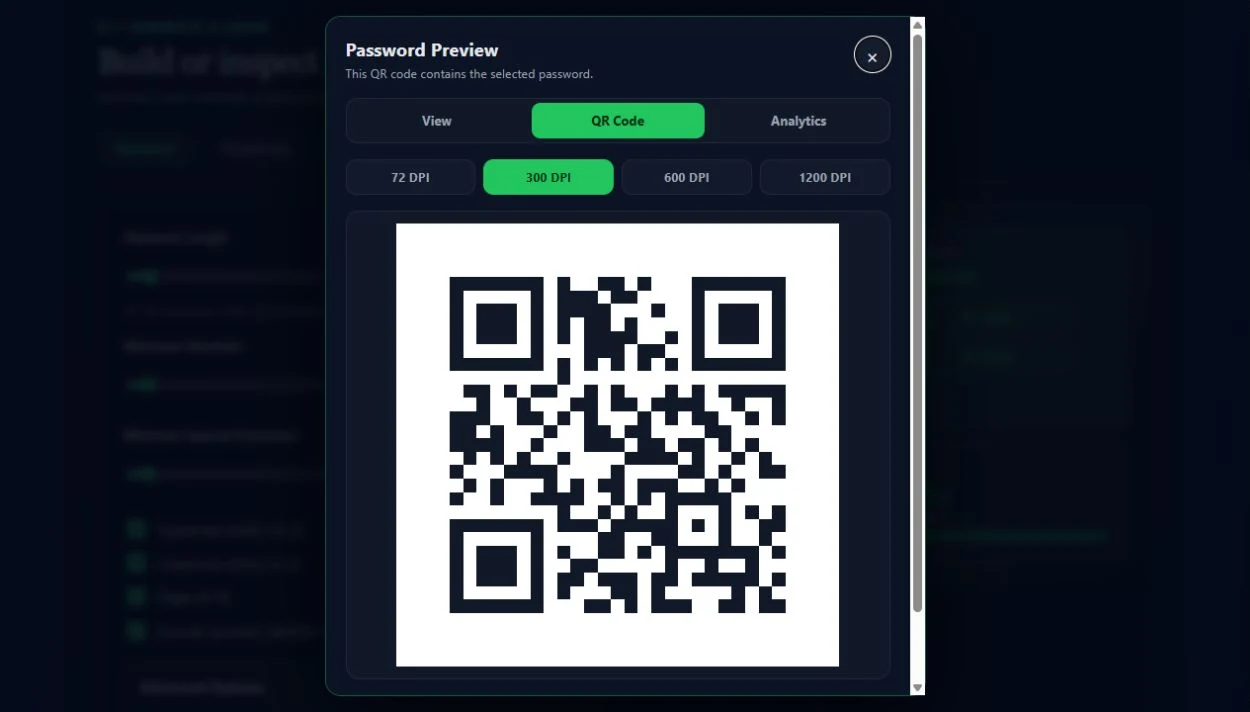
QR export choices
The QR tab offers:
- 72, 300, 600 or 1,200 DPI output.
- Download PNG for a standard image file.
- Download SVG for a vector image that stays sharp when resized.
- Print QR Code for a paper copy.
A QR code is not encryption. It is another visible copy of the password. Anyone who sees or scans it can recover the text. Use it only to move a credential between devices you trust, and do not post or casually save the image.
Privacy and secure generation
Passwords, passphrases, usernames and aliases are generated in your browser. The password generator uses the browser’s Web Crypto API, which is designed to provide strong random values for security-sensitive work.
The strength analysis also runs locally. The optional breach lookup is the exception because it has to ask the external breach database for a range of possible matches, using the five-character fingerprint prefix described above.
A safe everyday workflow
For an ordinary online account:
- Open the Password tab.
- Choose a long length and leave all four character types enabled unless the site forbids one.
- Use the minimum sliders only when the site has a specific rule.
- Select Generate Password.
- Copy the result directly into the account form.
- Save it in a reputable password manager.
- Enable multi-factor authentication or a passkey when the service offers one.
Use a different password for every account. The generator helps create the secret, but a password manager is the safer place to store it for the long term.
Complete feature checklist
The tool includes:
- Passwords from 4 to 2,048 characters.
- Batches of 1 to 100 passwords.
- Uppercase, lowercase, digit and symbol controls.
- Guaranteed minimum numbers and special characters.
- Similar-character and duplicate-character exclusions.
- Optional inserted words, prefixes and suffixes.
- Batch row selection, select all and table pagination.
- Strength and entropy estimates.
- Copy, large preview, print and TXT download actions.
- Print layouts with 1 to 30 passwords per page and optional QR codes.
- Three-to-twelve-word passphrases with five separator choices.
- Passphrase capitalization, number and word-filter options.
- Random word usernames with capitalization and number options.
- Plus-addressed email aliases.
- Catch-all domain email addresses.
- Local password strength and composition analysis.
- Character distribution and Shannon entropy comparison.
- Four lightweight randomness diagnostics.
- Brute-force time and collision probability estimates.
- A character-type heatmap.
- A private Pwned Passwords breach lookup using a five-character hash prefix.
- A 24-hour local cache of up to 100 anonymous breach range replies.
- Credential View, QR Code and Analytics previews.
- QR export at 72, 300, 600 and 1,200 DPI.
- PNG and SVG QR downloads and QR printing.
- Reset buttons for returning each generator to its defaults.
You can use the complete tool here: MonkeyTactics Password Generator, Analyzer & Breach Checker.