
Most batch QR code generators make the workflow sound simple: upload a CSV, wait, and download a ZIP. Whether a product calls itself a bulk QR code generator or a CSV QR code generator, that three-step description leaves out most of the production risk.
That is enough to create a folder full of images. It is not enough to run a reliable production job.
A real batch QR workflow must answer harder questions. Were empty records removed? Did the file contain duplicates? Were invalid style overrides ignored or silently applied? Can every output be matched back to its source row? Did a logo make one dense code less reliable than the others? Are the files named consistently? Can the same batch be delivered as vector artwork, a printable booklet, a label sheet, and a review contact sheet?
The difference between “bulk generation” and a production workflow is everything that happens before and after the QR image is rendered.
This guide explains how to plan, validate, style, generate, review, package, and print up to 250 QR codes at a time with the MonkeyTactics QR Code Generator.
What batch QR workflows actually mean
A batch begins with multiple payloads: URLs, text, Wi-Fi credentials, contact records, event data, payment addresses, or other content. Each row needs a unique identifier and a predictable output file.
The generation step is only one part of the pipeline:
- Prepare source data. Give every record a stable name and a complete payload.
- Validate the file. Check headers, quoting, required fields, empty rows, duplicates, and supported overrides.
- Normalize the records. Clean data without hiding what changed.
- Apply a design system. Use one reliable visual baseline, with controlled per-row exceptions.
- Generate deterministically. The same source and settings should produce the same QR modules and predictable filenames.
- Measure reliability. Evaluate the actual code produced for each payload, because longer data can create denser grids.
- Package outputs. Deliver the right raster, vector, PDF, metadata, and review files.
- Test production samples. Scan the exported and printed results under realistic conditions.
This matters because batch defects scale. One manually created QR code with a bad URL is one mistake. A malformed CSV column or unsafe styling rule can repeat that mistake across hundreds of labels.
Why businesses generate QR codes in bulk
Batch QR codes are useful whenever one design must connect many physical items to different digital destinations.
Product packaging
Each SKU, flavor, size, serial range, or regional package can link to specific instructions, ingredients, registration, warranty, support, or compliance information. Stable names let the production team match each image to the correct artwork.
Event tickets and passes
Every attendee, seat, session, sponsor, or access level may need a unique encoded value. Deterministic filenames and a final record list make it easier to merge codes into ticket templates without losing the row-to-image relationship.
Asset tracking and inventory labels
Equipment, storage bins, rooms, tools, and inventory locations can each carry an identifier or direct record URL. Vector and high-resolution outputs are useful for thermal, laser, and durable-label workflows.
Team business cards
A company can apply one visual design while giving each employee a different contact destination, text logo, or frame label. A business-card PDF layout reduces the manual placement work.
Marketing campaigns
Stores, mail pieces, regions, products, and creative variants often need distinct destinations. Names and data hashes can prevent ambiguous files such as qr-code-final-7.png.
Coupons and promotions
Unique offer URLs or redemption tokens can be generated from a spreadsheet and delivered as individual files, a booklet, or a contact sheet for review.
Restaurants and hospitality
Restaurants can create codes for menus, tables, rooms, Wi-Fi cards, feedback pages, or locations. Hotels can use row-level frame labels and colors to separate guest Wi-Fi, amenities, and property information.
Hardware and crypto workflows
Device instructions, public wallet addresses, setup records, and non-secret identifiers can be printed in batches. Never place private keys, seed phrases, recovery codes, or other secrets into a shared production CSV.
The common requirement is not merely “many QR codes.” It is many QR codes that stay attributable, consistent, scannable, and ready for the next production step.
How MonkeyTactics handles a batch QR workflow
MonkeyTactics runs the QR generation process in the browser. The uploaded CSV, generated codes, and saved project stay local to that browser unless you explicitly download or move a file. There is no account requirement, server-side job queue, or email wait for static batch generation.
A strict CSV contract
The batch importer requires two headers:
name,data
product-alpha,https://example.com/products/alpha
product-beta,https://example.com/products/beta
name identifies the record and becomes available to the filename system. data contains the exact payload encoded into the QR code.
The importer does not guess at arbitrary spreadsheet columns or silently map “URL,” “destination,” and “link” to the same field. That strict contract makes the input reproducible. The built-in template provides the correct headers and examples for URLs, text, Wi-Fi, vCard, email, SMS, phone, geo, calendar, TOTP, cryptocurrency, and social payloads.
CSV quoting is supported, including commas, line breaks, and escaped quotation marks inside quoted values. The parser also catches malformed files such as an unclosed quoted value or duplicate header names.
Cleanup and validation before generation
After import, the tool:
- Requires both
nameanddataheaders - Rejects an empty file
- Removes rows whose
datacell is empty - Supplies a fallback name when the name is blank
- Removes exact duplicate records
- Reports ignored extra columns
- Shows the first eight cleaned records in a preview table
- Reports the count of valid, empty, and duplicate rows
- Limits a batch to 250 cleaned records
Duplicates are evaluated from the complete effective row: normalized name, data, text-logo override, and frame overrides. Two rows with the same URL but different valid frame text are not treated as identical production records.
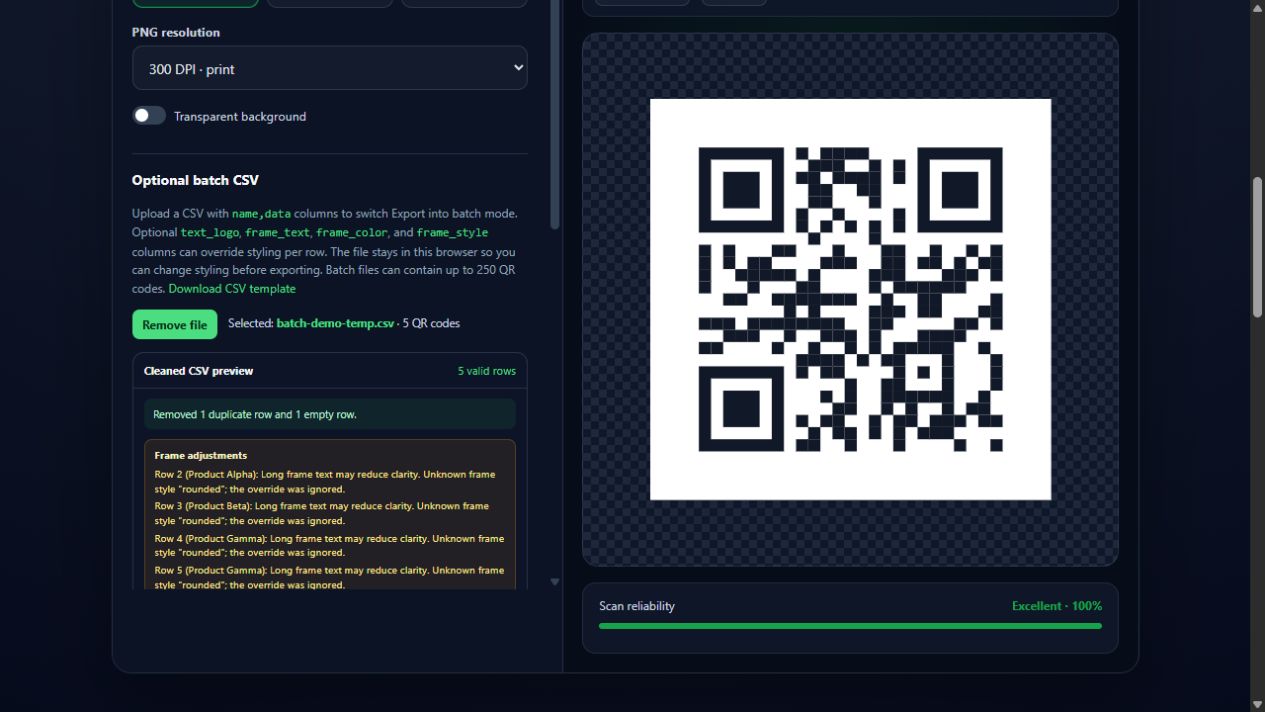
The importer explains what it cleaned and adjusted before the batch is exported.
One design system with controlled row overrides
The current project styling becomes the default for every item. This keeps foreground colors, gradients, module patterns, finder eyes, logos, frames, effects, quiet-zone treatment, and export settings consistent across the batch.
Four optional CSV columns allow controlled exceptions:
text_logoframe_textframe_colorframe_style
Text logos and frame text are normalized to their supported character and length rules. Frame colors must use six-digit hexadecimal notation such as #166534. Frame styles must match a supported style identifier. When an override is invalid, the importer ignores that override and tells you which row was adjusted.
This is safer than letting every row redefine the whole visual system. The brand stays consistent while location names, initials, calls to action, or approved frame variants can change per record.
Reliability scoring in the generation engine
Payloads do not all produce the same grid. A short URL may generate a relatively sparse symbol, while a long record can require more modules. The same logo and module style can therefore create different amounts of risk across a batch.
The Rust/WebAssembly engine generates the batch in one local call and calculates a reliability score for every result. Those per-item scores are included in the package manifest so a production team can identify weaker outputs instead of assuming the previewed item represents the entire batch.
The score evaluates design factors such as contrast, module size, effects, and logo coverage. It complements—not replaces—camera and print testing. For a detailed explanation, see QR Code Reliability: Quiet Zones, ECC Levels, and Why Most Styled QRs Fail.
Output formats for production and review
A batch can be packaged as:
- Files in the currently selected format: PNG, SVG, or PDF
- A PDF booklet with one labeled QR code per page
- An SVG set
- Mixed PNG and SVG files
- A ZIP bundle containing the selected outputs
PNG exports support 72, 300, 600, and 1200 DPI settings. SVG preserves vector geometry for design and print software. PDF supports individual print-ready files and composed layouts.
Printable PDF layouts include:
- Avery 5160, 5163, and 5164 label sheets
- Business-card sheets
- Poster grids in 2×2, 3×3, or 4×4 arrangements
- One-code-per-page booklets
- Thumbnail contact sheets with record names
The label and business-card layouts place codes into repeatable page grids. Always compare the generated layout with the exact stock, printer margins, and scaling settings used in production.
Filenames that survive handoffs
The filename pattern accepts these tokens:
{index}for a zero-padded sequence{name}for the cleaned record name{type}for the project’s QR type{data_hash}for a deterministic hash of the payload
A pattern such as {index}-{name}-{data_hash} produces files that sort correctly and can be traced even when two human-readable names are similar.
Invalid filesystem characters are cleaned from the final names. That reduces problems when a ZIP moves between Windows, macOS, cloud storage, print vendors, and automated layout systems.
Metadata that documents the job
The ZIP package can include:
manifest.json- A final QR list CSV
- A thumbnail contact-sheet PDF
The manifest records source data, styling, reliability score, and every generated filename. The final CSV is useful for spreadsheet review or downstream merging. The contact sheet gives a person a compact visual index without opening hundreds of separate files.
Together, these files turn the ZIP into a documented production package rather than an unexplained folder of images.
Projects make the batch reproducible
A saved project can contain the content settings, styling, embedded image or text logo, imported batch CSV, export preferences, notes, and tags. Projects stay in local browser storage and can be duplicated for controlled variations.
Export the project as JSON when you need a portable backup, another browser, or an auditable snapshot of the job configuration.
What is different from Bitly, QRCode Monkey, and QR TIGER?
These products serve overlapping but different workflows. The useful question is not “which generator wins?” It is “which production model matches the job?”
| Feature | Bitly | QRCode Monkey | QR TIGER | MonkeyTactics |
|---|---|---|---|---|
| CSV batch | Paid plans; plan limits | Promoted through Pro | Yes; up to 3,000 | Free local workflow; up to 250 |
| Visible cleanup and duplicate reporting | Upload error reporting | Not documented in free tool | Template validation | Yes, before export |
| Per-output reliability score | Not documented | Contrast warning only | Not documented | Yes, including manifest data |
| Quiet-zone and ECC visualization | Not documented | Not documented | Not documented | Yes |
| Perspective simulation and heatmap | Not documented | Not documented | Not documented | Yes |
| PDF and print layouts | Image downloads documented | Single-code PDF; styled export limits | Paper-size output | Booklets, labels, cards, posters |
| Manifest and contact sheet | Not documented | Not documented | Not documented | JSON, final CSV, contact-sheet PDF |
| Generation architecture | Managed cloud service | Web generator | Managed cloud service | Local Rust/WASM engine |
Comparison based on the vendors’ public product, pricing, and support pages available in August 2026. “Not documented” means the reviewed public workflow does not describe the feature; it does not prove the capability is absent from every plan or private offering.
Bitly: managed links and analytics
Bitly’s bulk QR workflow supports CSV or Excel uploads, shared design settings, and account-based management. Its official bulk-upload guide says the feature is available on some paid plans and that processing can take from minutes to hours, with completion delivered by email. Bitly’s current pricing comparison lists QR bulk creation at 10 codes per upload on Growth, 200 on Premium, and custom limits on Enterprise.
Bitly is stronger when you need managed dynamic redirects, scan analytics, team permissions, an API, or enterprise-scale link operations. MonkeyTactics is differentiated when you need up to 250 static outputs immediately in the browser, without an account or paid plan, plus local reliability scoring, row-level frame/text-logo overrides, deterministic packaging metadata, and print-layout deliverables.
QRCode Monkey: strong single-code styling
The public QRCode Monkey generator provides logo, shape, color, contrast warning, and high-resolution single-code exports. Its page promotes bulk creation through the associated professional QR management platform rather than exposing the complete batch-production workflow in the free single-code interface.
MonkeyTactics combines its free styling studio and CSV batch export in the same browser tool. The design can move directly from single-code inspection to a validated production package.
QR TIGER: larger managed batches and dynamic codes
QR TIGER’s official bulk generator advertises up to 3,000 URLs per CSV, static or dynamic modes, shared customization, paper-size options, and ZIP output. It is the better fit when the primary requirement is a larger managed batch, editable destinations, or dashboard analytics.
MonkeyTactics does not claim the larger limit or managed dynamic tracking. Its strengths are the free local workflow, exact cleanup reporting, per-row style-override warnings, per-output reliability scores in the manifest, high-resolution and vector assets, multiple metadata files, and specific Avery, booklet, business-card, poster, and contact-sheet PDFs.
That distinction matters: a static production asset and a subscription-managed redirect solve different problems.
Common problems in batch QR production
Inconsistent styling
Creating codes manually invites small differences in color, eye shape, frame spacing, logo size, and export resolution. Use one saved project as the batch baseline and restrict per-row changes to the supported override columns.
Incorrect CSV formatting
Commas and line breaks inside vCards, calendar data, or descriptive text must be quoted correctly. Begin with the downloadable template, keep the exact name,data headers, and review the cleaned preview before exporting.
Duplicate destinations or records
Duplicates can waste labels and confuse downstream systems. MonkeyTactics removes exact duplicate effective rows and reports the number removed. Similar-but-not-identical records still require a human review, which is where the final CSV and contact sheet help.
Missing required data
A row without a payload cannot create a useful QR code. Empty data rows are removed and counted rather than becoming blank or broken outputs.
Invalid row-level styling
A mistyped frame style or malformed color can break consistency. Supported overrides are normalized and validated; rejected values appear as row-specific adjustments before export.
Low contrast
A shared pale gradient can weaken every code in the job. Begin with dark modules on a light solid background and use the reliability analysis before multiplying the design.
Quiet-zone violations
The required four-module clear margin is part of the symbol’s usable area. Do not crop it when importing the exported asset into label or packaging artwork. Use the quiet-zone overlay on the base design and verify the composed PDF or final layout.
Logo obstruction and incorrect ECC
Logos cover encoded modules. Use a centered, modest logo, white safety border, safe mode, and automatic error-correction adjustment. A logo that works on a short payload may be riskier on a denser row, so review the per-output reliability scores in the manifest.
Modules that become too small
Long payloads create denser grids. If every code is forced into the same small physical box, some rows will have smaller modules than others. Shorten payloads where possible and test the densest codes at final size.
Perspective and material problems
Flat artwork can become curved packaging, a distant poster, a glossy tag, or a label viewed from the side. Simulate perspective on the base design, then test representative physical samples from the actual batch.
Step-by-step: a production batch from CSV to ZIP
1. Create a project
Open the generator’s Projects tab and create a named project for the job. Add notes or tags that describe the client, campaign, revision, or print run.
2. Download and complete the CSV template
Use the template available in the Export tab. Keep name and data. Add text_logo, frame_text, frame_color, or frame_style only when the batch requires controlled row variations.
Choose stable names before export. Names should represent identifiers that will remain meaningful after the files leave your computer.
3. Upload and inspect the cleaned records
Upload the CSV in the Export tab. Confirm the valid-row count, removed empty rows, removed duplicates, ignored columns, and any text-logo or frame adjustments. Review the previewed values for accidental spreadsheet transformations.
If the file is wrong, correct the source CSV and upload it again. Do not “fix it later” by renaming or replacing individual images after the batch loses its connection to the source.
4. Apply the visual system
Use the Styling tab to set colors, gradients, module patterns, finder eyes, logo, frame, and effects. The imported CSV remains in the browser while you adjust the shared style.
Read How to Design a Beautiful QR Code Without Breaking Scanability before applying an aggressive logo or artistic treatment across a production batch.
5. Check reliability
Review the live score, quiet-zone overlay, ECC visualization, heatmap, and camera-perspective simulation. Use a conservative base design because payload density will vary across rows.
6. Choose the outputs and filename pattern
Select PNG, SVG, or PDF and the appropriate resolution or layout. Choose a batch mode, then set a traceable filename pattern such as {index}-{name}-{data_hash}.
For a vendor handoff, include the manifest, final CSV, and contact sheet. For an internal review, a PDF booklet or contact sheet may be the fastest approval artifact.
7. Export and preserve the package
Export the batch. The progress dialog reports each QR code as the engine and packaging workflow complete. Save the ZIP and a project JSON backup together under a versioned job folder.
8. Inspect before production
Sort the manifest by reliability score, inspect the lowest-scoring outputs, and scan a representative selection. Include the longest payload, smallest module grid, most aggressive logo override, each frame variation, and codes from the beginning and end of the batch.
Then print a sample on the actual device and stock before approving the full run.
Best practices for large QR deployments
Choose ECC deliberately
Level M, with roughly 15% codeword recovery, is a common general baseline. Use Q or H when controlled logo coverage or a dirty environment justifies more redundancy. Higher ECC can also create a denser symbol, so it is not automatically safer at a fixed print size. DENSO WAVE’s error-correction guidance recommends choosing the level in relation to the environment and symbol size.
Preserve four modules of quiet zone
Leave a blank margin four modules wide on all sides. Do not allow a frame, cut line, background texture, neighboring label, or packaging artwork to enter it. DENSO WAVE documents the four-module requirement.
Size by modules, not only by overall width
A universal “minimum QR size” is misleading because versions contain different numbers of modules. Determine the densest symbol, divide its printed width by its module count, and include the quiet zone separately.
DENSO WAVE recommends at least four printer dots per module for stable operation. At 300 DPI, four dots are about 0.34 mm; at 600 DPI, about 0.17 mm. Scanner capability, surface, distance, and production tolerance may require larger modules.
Use high-contrast conventional polarity
Keep every foreground or gradient stop substantially darker than the background. A light solid background is safer than transparency. Do not assume a color that works on screen will reproduce identically on uncoated stock, thermal media, or a low-ink office printer.
Keep logos conservative
There is no universal safe logo percentage. Use the safe-logo controls, keep the logo centered and modest, and inspect the reliability score for every generated item. Test the densest row, not just the prettiest preview.
Export for the next system
Use SVG when a designer or automated compositor needs scalable artwork. Use production-resolution PNG when the receiving system requires raster files. Use PDF layouts when the page arrangement is already known. Never enlarge a small PNG after export.
Use naming conventions that survive automation
Prefer lowercase stable names, an index, and a data hash. Avoid names derived only from a marketing description that may repeat. Preserve the manifest and final CSV as the authoritative mapping.
Build acceptance tests before the full run
Define what “passes” means: devices, distance, angle, lighting, material, print method, and maximum scan time. Test representative and worst-case codes before ordering thousands of labels.
Templates that reduce setup mistakes
The built-in CSV template shows the exact required and optional columns and includes examples for multiple payload formats. The Export tab also provides ready-made PDF arrangements for common Avery label products, business cards, posters, booklets, and contact sheets.
Treat these as starting dimensions, not substitutes for a printer proof. Confirm the product number, page size, scaling, margins, and feed alignment before using expensive stock.
Frequently asked questions about bulk QR codes
How do I generate multiple QR codes from a CSV file?
Create a CSV with name,data headers, add one payload per row, upload it in the Export tab, review the cleaned preview, apply the shared styling, select the output package, and export. Optional columns can set a text logo, frame text, frame color, or frame style for individual rows.
How many QR codes can MonkeyTactics generate at once?
One batch can contain up to 250 cleaned rows. Empty and exact duplicate records are removed before that batch is generated.
Are bulk QR codes static or dynamic?
MonkeyTactics produces static QR codes containing the supplied data directly. It does not insert a subscription-managed redirect. Use a managed dynamic-QR platform instead when you need to change destinations after printing or collect provider-hosted scan analytics.
Can every QR code in a batch have a different design?
The saved project supplies one consistent design. Individual rows can override the text logo, frame text, frame color, and frame style. Keeping the remaining design settings shared reduces production drift and makes the batch easier to validate.
Make the batch auditable, not merely fast
Speed matters, but the fastest possible QR render is not the goal. The goal is to produce a batch that another person can review, print, trace, reproduce, and trust.
That requires strict source data, visible cleanup, consistent styling, controlled exceptions, reliability analysis, deterministic names, multiple production formats, and metadata that documents the finished job.
Try the MonkeyTactics Batch QR Generator — free, fast, and powered by Rust/WASM.
It generates up to 250 static QR codes locally in your browser and packages them with the print, vector, review, and metadata files needed for a real production workflow.
QR Code is a registered trademark of DENSO WAVE INCORPORATED.